11. Add an overlay
L4 A10 Add An Overlay
Reference Documentation
One way you can customize the Google Map is by drawing on top of it. This technique is useful if you want to highlight a particular type of location, such as popular fishing spots.
- Shapes: You can add polylines, polygons, and circles to the map.
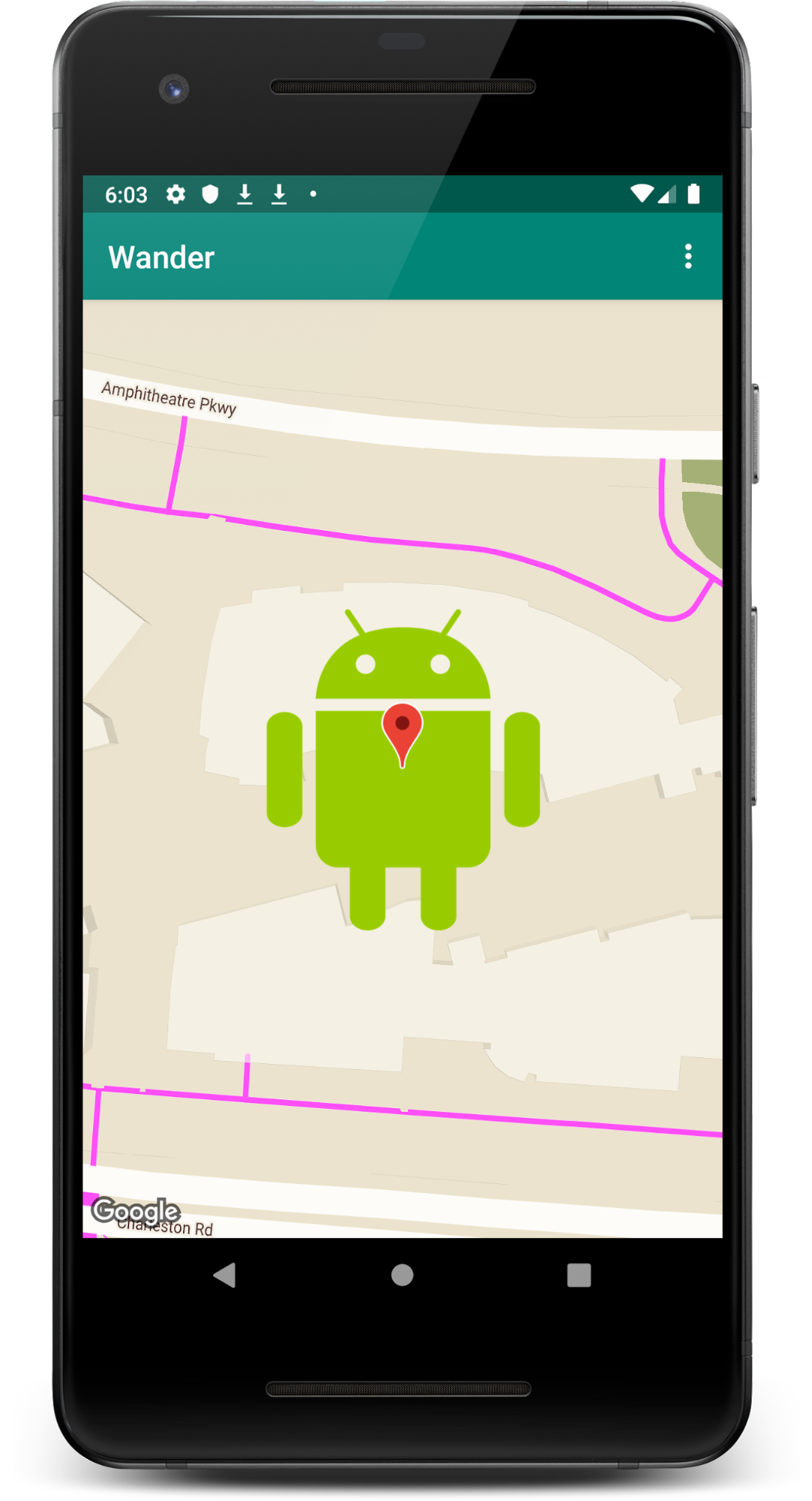
GroundOverlayobjects: A ground overlay is an image that is fixed to a map. Unlike markers, ground overlays are oriented to the Earth's surface rather than to the screen. Rotating, tilting, or zooming the map changes the orientation of the image. Ground overlays are useful when you wish to fix a single image at one area on the map
In this step, you add a ground overlay in the shape of an Android to your home location.
- Download this Android image and save it in your
res/drawablefolder. (Make sure the file name isandroid.png.)

- In
onMapReady(), after the call to move the camera to your home’s position, create aGroundOverlayOptionsobject. Assign the object to a variable calledhomeOverlay:
val androidOverlay = GroundOverlayOptions()- Use the
BitmapDescriptorFactory.fromResource()method to create aBitmapDescriptorobject from the above image. Pass the object into theimage()method of theGroundOverlayOptionsobject:
val androidOverlay = GroundOverlayOptions()
.image(BitmapDescriptorFactory.fromResource(R.drawable.android))- Set the position property for the
GroundOverlayOptionsobject by calling theposition()method. Create afloatfor the width in meters of the desired overlay. For this example, a width of100fworks well. Pass in the homeLatLngobject and the size value.
val overlaySize = 100f
val androidOverlay = GroundOverlayOptions()
   .image(BitmapDescriptorFactory.fromResource(R.drawable.android))
.position(homeLatLng, overlaySize)- Call
addGroundOverlay()on theGoogleMapobject. Pass in yourGroundOverlayOptionsobject:
map.addGroundOverlay(androidOverlay)- Run the app. Try changing the value of
zoomLevelto18fto see the Android image as an overlay.